- Make ID cards:
- Try ID Maker
- First time printing?
- Resources
 Teslin Paper, Butterfly Pouches, Inkjet PVC Cards, Make ID Card Kits Easy
-
New customer?
Create Account
Free shipping over $19
Free shipping over $19
Products
Help
Make Cards
Account
ID Learning Center: How To Make ID - Basic Tutorial
Basic Tutorial - Video
What You'll Need
- An inkjet or laser printer
- A Hot Laminator
- Carrier
- Micro-Perforated Teslin®
- Butterfly Pouches
- A Graphics Editing Program (Microsoft Word, Apple Pages, GIMP (Free), Adobe Photoshop, Adobe Illustrator, Corel Draw, Etc.)
We have created an Example ID and 8 card layout template which you are free to use and modify for your own personal use. You can download them from the ID Template Downloads section of the Learning Center. We will be using this Example ID and Layout template during the tutorial for reference.
Steps
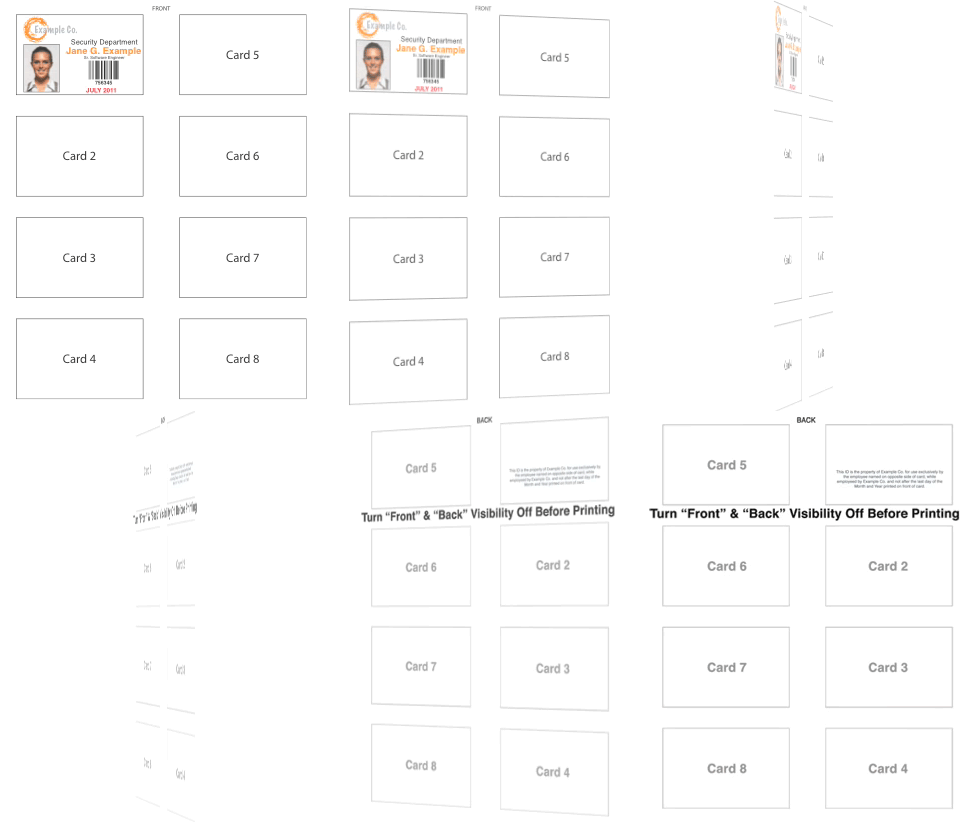
1. First you will want to print out your ID (Printer Settings).
As this animation shows we have lined up the front and back of our Example ID on our 8-up layout. Flipping the Teslin® Paper as shown in the animation (from left to right, not top to bottom) will allow your printer to print in the same position on the both sides to make a quick and easy front and back for your ID.
Note: In our 8Up ID Template for Photoshop/GIMP you will need to disable the Layer's labeled "Front" and "Back" before printing. In Illustrator these layers automatically do not print.
2. Next you simply need to punch the ID card out of the micro-perforated Teslin® sheet.
We recommend bending along the perforations a few times then punching the card out. Now would be a good time to turn your laminator on to allow it to heat up (If your laminator has a temperature control see your laminates product page for ideal lamination temperature).
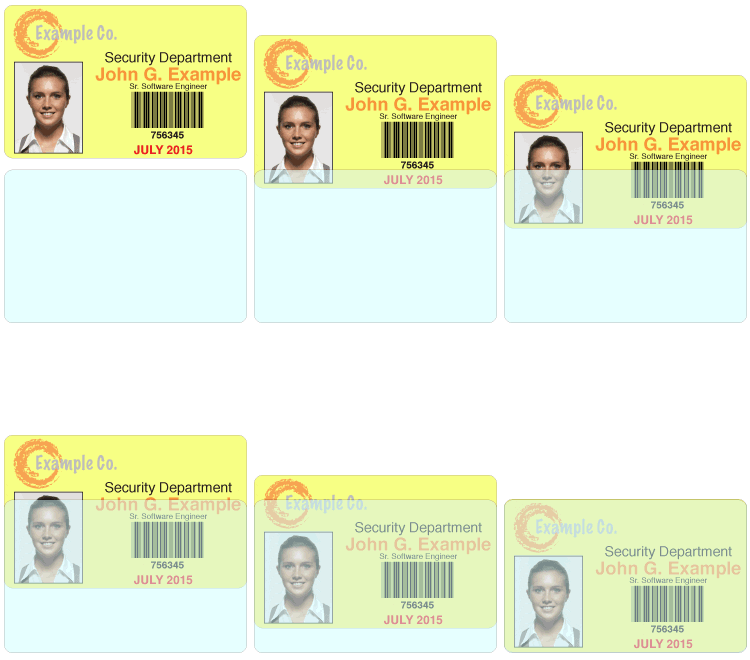
3. Put the Teslin® inside the pouch and laminate it.
Align the ID inside the butterfly pouch and close it, hold the Teslin® Paper in place in the pouch and place this inside the carrier (if your laminator requires one) and once again hold everything in place. If your laminator has a "run" switch, turn that on to start the feed wheels turning. Now, feed the the carrier/pouch in to the laminator, folded side first. Let the laminator take it in and wait for it to come out the other side.
Congratulations, you've made your first ID!
Sounds great, right?
You can buy an ID Kit today and have it in 3 days (or less) with our standard Priority Mail shipping! And don't forget out unconditional 30-day money back guarantee!